Do you have computers that should really be running one application? Whether their kiosk machines or clients needing just a web browser, Group Policy Kiosk Mode can your lock your machines down. With just a few administrative templates and loopback, users will get the one application they need and nothing else. Simplicity at its best! To show you what I mean, the picture below is a kiosk machine running only a web browser. The computer automatically starts in the morning, logs in as the kiosk user, and launches the needed application. No Explorer, No Start bar, No way for a user to mess it up!
Tag Archives: Windows 8
Administrative Command Prompt: 4 Must Know Tricks
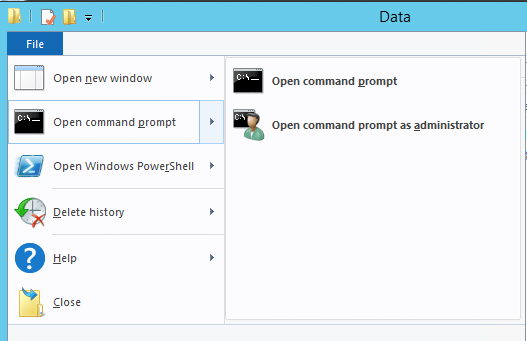
Along with PowerShell and Group Policy, I am in and out of the command prompt all day! Unlike those previous tools, I tend to use CMD in spurts. I might open it real quick on a test machine or use it to troubleshoot a client. To make life easier, I regularly use these 4 tricks to get to the administrative command prompt!

Creating a Hyper-V Lab on Windows 8
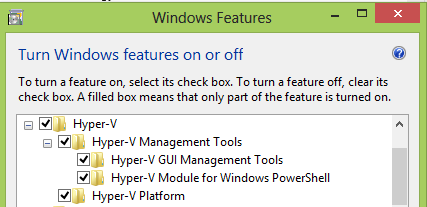
Windows Server 2012 and Windows 8 are so similar that they even share the same version number (6.2)! It should come as no surprise that some desktop features have been integrated into Server (like the Start Screen). While having the Start Screen on Server isn’t the best in terms of diffusion, some great Server features did manage to make it back into Windows 8. The biggest example – Hyper-V! Now, on a client OS, you can natively run an entire virtual environment. In this guide, I’ll show you exactly how to do this so that you can start creating a Hyper-V lab on Windows 8.
Find Out What Computer a User Logged Into Automatically
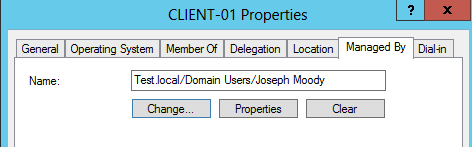
Stop asking “What Computer are You On”! Instead use Active Directory and Group Policy to search for you! In this post, we are going to set Active Directory to automatically record where users login. And when a user calls, Active Directory Users and Computers will let us instantly remote into their computer and will find out what computer a user logged into. In short, you will be able to click on any computer in your domain and see the current logged in user. All within Active Directory Users and Computers!
Block the Control Panel with Group Policy and PowerShell
Being able to block the Control Panel with Group Policy is quite easy, simply enable “Prohibit access to Control Panel”. Blocking certain control panel applets, like Sound, is harder! You would think that enabling “Hide specified Control Panel items” would do the trick – that is until you read the description for that setting.
So it isn’t as simple as entering in Volume to block the Volume and Sound applet. To make sure that we block the correct applet, let’s learn the incorrect and correct way for PowerShell to list our Control Panel canonical names.