Have you ever worked on one of those projects that you just could not find an answer for? You know that there has to be a way to do what has been asked, but you spend countless hours searching multiple forums and your trusty techy go-to sites only to find unanswered questions and people saying “it cant be done”… In the end, you feel like you’ve wasted a full day and accomplished nothing… But it doesn’t have to be this way! One simple tool can tell you what to change and where to find it! Let’s start off with a little backstory…
Tag Archives: Windows 8
Dell BIOS Update Utility (GUI Version Guide)
Have you ever wanted to configure the Dell BIOS remotely? Sometimes, it would be pretty awesome to just push out a group of BIOS settings and enjoy another cup of coffee! Do I have your attention now? Good! To start off with, you will want to read Part 1 first. You will also need to have the Dell BIOS Update Utility, also known as CCTK installed. If needed, here is the tools link. Finally, you will want to decide the settings that you will want to deploy. As a basic guide, you will probably want to push out these settings:
- A BIOS password
- A configured boot order that removes unneeded devices
- Automatic power on and the power on time
- Remote wake up on LAN
If you will be deploying these settings to laptops, you will probably want to configure two additional settings:
- Disabling the Wireless switch (prevents users from accidently turning off the wireless card)
- Enabling TPM (allows you to use BitLocker)
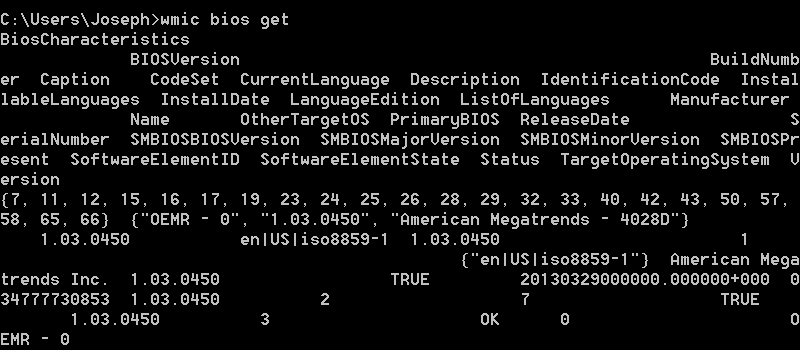
While it is certainly true that you can use WMI to query the BIOS for certain settings, you won’t be able to write any information. Stick with the Dell’s Client Configuration Toolkit to configure your BIOS settings and you won’t have to deal with the screenshot below.
Today, we will create a GUI BIOS setting package that allows us to configure any and every BIOS setting on a machine. We can even create generic packages that apply across models. In our environment, we manage just a single BIOS package for 16 different models.
Manage the Dell BIOS Remotely: Enterprise Guide
How do you manage the BIOS settings on your computers? When I asked this question to a few friends, the response was the sound of crickets. One in our group spoke up. He walks around and manually configures them! While he is obviously in better shape than I am, I chose to blame genetics and not the fact that I would rather automate a task than physically do it.
To manage your Dell machines (and to automate some work), you can choose one of two routes to manage the Dell BIOS remotely. But first – let’s see what we need to configure and how we can do it.
Group Policy Preferences Not Applying? Here’s Your CheckList!
Group Policy Preferences Not Applying? Most of the time, our issues will come down to a handful of items and misconfigurations. As awesome as they may be, Group Policy Preferences (GPPs) gave us a whole new set of challenges and a few new ways to troubleshoot. Let’s go through the top ways to troubleshoot preferences (and learn a few performance tricks on the way)!
Why Choose Windows Enterprise?
There are only two real editions of Windows 7 and 8 that you can run in your organization: Professional and Enterprise. After all, it is pretty hard to manage a machine that can’t join the domain! You would think that the choice would be easy right? Just load Professional, miss out on a few features that “no one uses” and go on with your day. Thinking that would be a mistake! So why choose Windows Enterprise? Here are 3 reasons:
Enterprise Means No More Viruses
AppLocker, available in Windows 7 and Windows 8, is the best addition to Windows since User Account Control! AppLocker, essentially Software Restriction Policies on steroids, allows you to globally whitelist or blacklist applications based on signatures, paths, or file hash’s.
In our environment, we use AppLocker to only allow programs to run if they exist in Windows or Program Files. Because only administrators can write to these locations and 99% of software runs from these locations, viruses/malware can’t be installed or ran by standard users. Further, users can’t bring in applications on their thumb drives or download stand alone applications like Firefox or Chrome. Because of this, we were able to cut our expensive anti-virus solution and purchase System Center with the extra money!
If you don’t believe me, read what Greg Shield (MVP and writer for TechNet) said about AppLocker.