


No matter how hard we try, our Active Directory database still seems to get cluttered! The two most common obsolete objects are computers and users. Today, we are going to clean up those old objects (and provide a bit of safety in case those objects return). What we will end up with is an easy way for you to start managing inactive computers and users in Active Directory!
(Re)Installing the Microsoft XPS Printer
In all of my brilliant wisdom, I thought it would be a wise idea to remove the Microsoft XPS Document Writer from all of my machines.

Why did I do this? Well – three years ago, I had a site that switched to Windows 7. A common complaint was that their default printer would sometimes change to the XPS document writer and the user didn’t know where that printer was located. It was useless to explain that it was a “fictional” printer so I did the logical thing and deleted the printer using Group Policy Preferences. Boy was I dumb! Until now, I thought I was stuck with that change.
Delete Offline Printers (after X Days)
In our previous post, we looked at time stamping offline printers. Today, we are going to track and delete offline printers. The end result will be a cleaned up print server! Oh yeah – all of this is done with PowerShell!
Offline Printers On Print Server – Log with PowerShell
How can you track offline printers on a printer server? Our environment has 422 network printers running from two print servers. Yesterday, I decided to sort by the Queue Status. I scrolled down to the Offline Status section and discovered 20 printers that were offline!
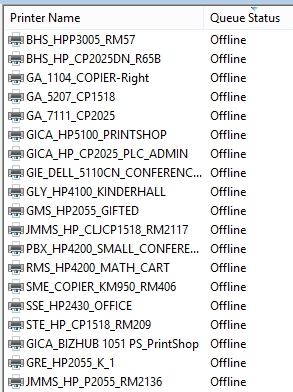
How can so many printers be offline without users complaining? Well, a quick glance through the list revealed several printers that are no longer here. They were replaced long ago. But what about the rest? Without more information, I have no way of telling whether a printer has been off for 1 minute or 1 month! We can fix this though – with PowerShell!
What version of PowerShell should I use?
PowerShell comes in 4 versions and 4 flavors! Choosing the right one ensures scripts run correctly, the best performance, and future compatibility. Microsoft doesn’t really guide your selection out of the box. How do you choose the right one? How do you know when to use ISE and which ISE to use? Easy – let’s find out how! Continue reading