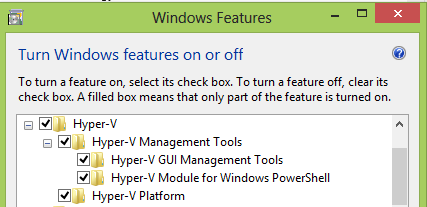
Windows Server 2012 and Windows 8 are so similar that they even share the same version number (6.2)! It should come as no surprise that some desktop features have been integrated into Server (like the Start Screen). While having the Start Screen on Server isn’t the best in terms of diffusion, some great Server features did manage to make it back into Windows 8. The biggest example – Hyper-V! Now, on a client OS, you can natively run an entire virtual environment. In this guide, I’ll show you exactly how to do this so that you can start creating a Hyper-V lab on Windows 8.
Installing Fonts with PowerShell and Group Policy Scripts
Deploying fonts as an application has worked so far. While it accomplishes my goal of installing fonts (without visiting every single machine), it has two downsides. First, Group Policy Software Installation requires a reboot to process. Second, an administrator is still needed to package the MSI. Because I love automation, this drove me crazy! How can I get out of the font deploying business? Let my users start installing fonts with PowerShell.
Inventory for Hardware: Part 2 – Find Serial Numbers in Active Directory
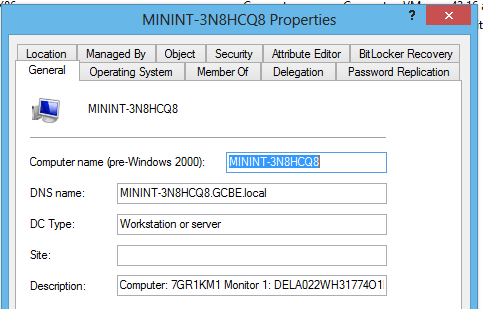
Now that Active Directory can tell us what computer models we have (and how many we own), it is time to extend our inventory! Today, we are going to implement one shutdown script with Group Policy. This script will query for our computer’s serial number (or service tag) and will also grab the unique ID associated with an attached monitor. It will then store both pieces of information in that computer’s Active Directory account. As a final result, you can look at any computer in your domain and see the information in the Description field. This makes it incredibly easy to find serial numbers in Active Directory!
So if you are tired of manually doing an inventory, let’s automate some stuff!
Windows 8 Win X Menu: Editing
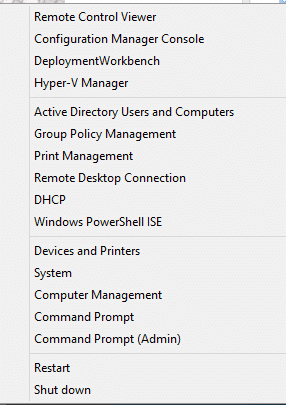
The Administrative Start Menu, or the Windows 8 Win X Menu, can really be the one stop shop for troubleshooting a client machine. For my management machine, it doesn’t really live up to the task. Don’t get me wrong, it is great to access Run or System this way. It is pretty cool that I can use shortcut keys. There is not a faster way to launch an Administrative command prompt than Windows + X, followed by A. But things like Search or Mobility center seem to just take up space. Tools that I would use for remote support, like event viewer or device manager, seem downright slow or featureless when compared to Concurrent RDP. That is why I set out to rebuild the administrative start menu and to turn it into this:
Active Directory Inventory for Hardware: Computer Make and Model
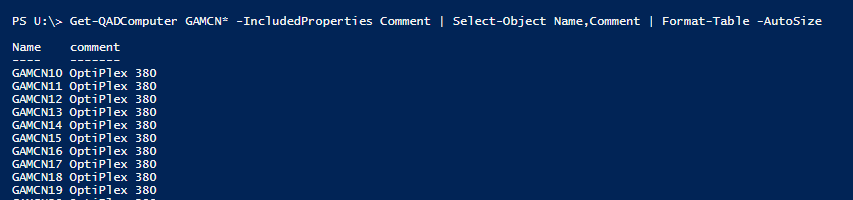
At its core, Active Directory is a database designed to store a multitude of objects. Each of these objects has hundreds of attributes, or properties, attached to them. Some attributes are automatically filled when the object is created. For example, the displayName attribute will automatically have the name of the object in it. Other attributes, like the comment field or description are left blank. These blank comments allow you to easily extend the database scope to your own nefarious purposes!
With a few scripts, you can setup Active Directory Inventory for Hardware. With PowerShell, you can then query or manipulate this data in nearly any way! Continue reading