Group Policy Preferences Not Applying? Most of the time, our issues will come down to a handful of items and misconfigurations. As awesome as they may be, Group Policy Preferences (GPPs) gave us a whole new set of challenges and a few new ways to troubleshoot. Let’s go through the top ways to troubleshoot preferences (and learn a few performance tricks on the way)!
Why Choose Windows Enterprise?
There are only two real editions of Windows 7 and 8 that you can run in your organization: Professional and Enterprise. After all, it is pretty hard to manage a machine that can’t join the domain! You would think that the choice would be easy right? Just load Professional, miss out on a few features that “no one uses” and go on with your day. Thinking that would be a mistake! So why choose Windows Enterprise? Here are 3 reasons:
Enterprise Means No More Viruses
AppLocker, available in Windows 7 and Windows 8, is the best addition to Windows since User Account Control! AppLocker, essentially Software Restriction Policies on steroids, allows you to globally whitelist or blacklist applications based on signatures, paths, or file hashes.
In our environment, we use AppLocker to only allow programs to run if they exist in Windows or Program Files. Because only administrators can write to these locations and 99% of software runs from these locations, viruses/malware can’t be installed or run by standard users. Further, users can’t bring in applications on their thumb drives or download stand alone applications like Firefox or Chrome. Because of this, we were able to cut our expensive anti-virus solution and purchase System Center with the extra money!
If you don’t believe me, read what Greg Shields (MVP and writer for TechNet) said about AppLocker.
Group Policy Kiosk Mode: Locking Down!
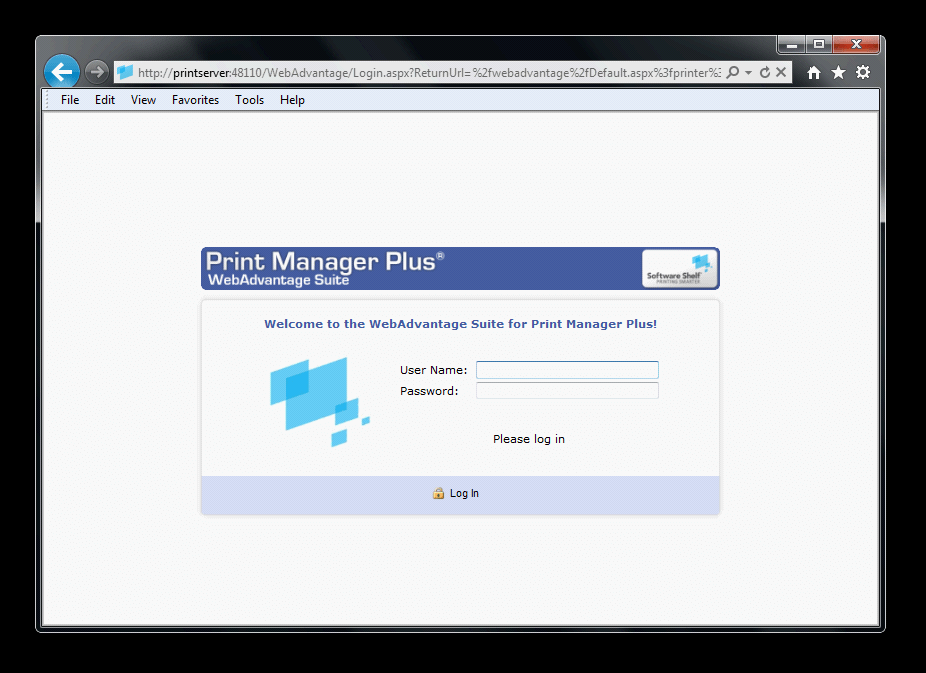
Do you have computers that should really be running one application? Whether they’re kiosk machines or clients needing just a web browser, Group Policy Kiosk Mode can lock your machines down. With just a few administrative templates and loopback, users will get the one application they need and nothing else. Simplicity at its best! To show you what I mean, the picture below is a kiosk machine running only a web browser. The computer automatically starts in the morning, logs in as the kiosk user, and launches the needed application. No Explorer, No Start bar, No way for a user to mess it up!
Exhausting the USNs: Inventory + AD = :( ?
We have been writing a ton of information to Active Directory lately! From computer serial numbers, device models, and our current logged in user, we’ve greatly extended the everyday practical benefits of Active Directory. But does this come at a price? Reading the comments of a few different websites, you would certainly think so. Here is a sample:
if you do it [write to a computer] after every logon, you can quickly exhaust the USN for the whole AD domain! And then the domain is dead.
Wow! So, according to this guy – our whole domain will die? That doesn’t seem right. Unfortunately, I do not know enough to accept or deny this statement so I did some research (and contacted Microsoft).
I’ve Made My Domain Disappear!
Administrative Command Prompt: 4 Must Know Tricks
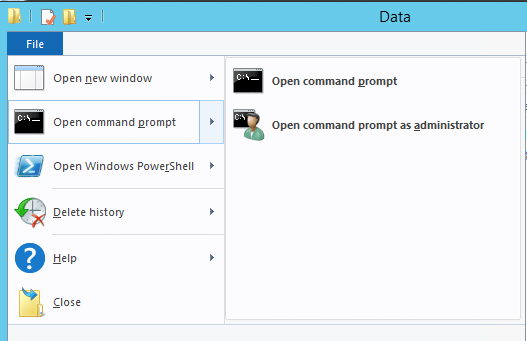
Along with PowerShell and Group Policy, I am in and out of the command prompt all day! Unlike those previous tools, I tend to use CMD in spurts. I might open it real quick on a test machine or use it to troubleshoot a client. To make life easier, I regularly use these 4 tricks to get to the administrative command prompt!