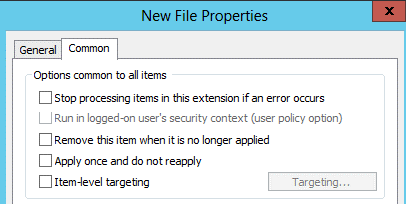
The “Run in Logged on User’s Security Context” option is one of the least understood (and used) features of Group Policy Preferences. Understanding how to use it (and when) can save you hours of frustrating and fruitless troubleshooting! In this post, we will cover a practical example showing when to use “Run in Logged on User’s Security Context”. First, a little introduction on this cool little Group Policy setting:
Author Archives: Joseph Moody
Tech Roundup Tuesday: First (and Possibly Last) Edition!
Ever feel like you are falling behind in technology? I struggle with this every day! Just to keep pace, I subscribe to a ton of RSS feeds (you can see the entire list here) and read nearly every book I can afford/find. When off work, I enjoy reading a handful of nontechnical blogs. My favorite articles are those that simply introduce me to things I need to know or interesting things that are happening.
Keeping to that tune, I am going to try to post a Tech Information/News/How-To/Etc roundup every Tuesday. If you have an interesting article or how-to guide that others should know about, send me an email by using the contact (email button) in the top right corner. If you like this Tech Roundup, let me know!
Tech Stuff to Know:
- Microsoft has released a free eBook showing the benefits of Windows Server 2012 R2. It can be found here.
- If you like free training, check out these three resources. One is a collection of free eBooks and the other are virtual labs for you to play with!
- SkyDrive for Office (Internal SkyDrive)
- Installing Software on Domain Controllers: When to do it? Never!
Tech News to Know:
- Surface Pro cut by $100, Expectations High for Surface 2
- How the FBI Hacks Suspects: Activating Cameras and Microphones
- Perspective on the PC-Pocalypse: Why Dell and HP aren’t so bad off
What I am Learning Right Now:
For the last few months, our organization has been moving over to System Center Configuration Manager. It has been a huge learning curve! Besides reading everything on TechNet, I wanted a more “readable” version in order to understand all of the components.
System Center 2012 Configuration Manager: Mastering the Fundamentals seems to fit that bill! So far, I have learned quite a bit about SCCM. Because all chapters are practically written, little time is wasted reading definitions. My favorite guides so far are on Windows Updates and Application Management. As a note, the previous link is an affiliate to Amazon.
That wraps it up for Tech Roundup Tuesday! If you have anything to add, just leave a comment below!
Modding the Print Management Console for an Easier Day
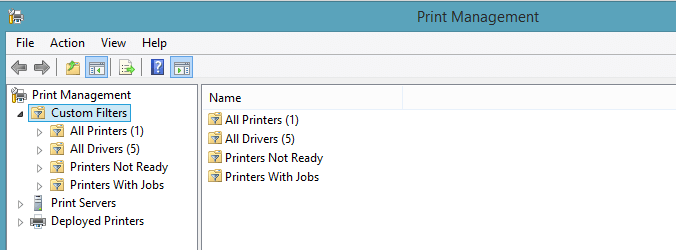
The tools that Microsoft provides are not simply made to be kept AS-IS! They should be modified for your environment and to make your day easier. The primary method of doing this is with a custom MMC console and by modifying their default configuration. We have already covered changes that you should make in Active Directory Users and Computers as well as one big change to make in the Group Policy Management Console. Today, we are going to look at three ways that you can start modding the Print Management console to make your day a little easier.
A PowerShell Script to Change Computer Names
Have you ever had to rename a lab of computers or even an entire site? I have been checking computer names in Active Directory this week. Besides cleaning up stale computer accounts, I have been trying to ensure that all of my computer names are standardized. Today, I noticed that a lab of 36 computers was missing one computer.
When this lab was replaced in the summer, someone accidentally named a computer incorrectly. When I physically checked the lab, the computer at spot 12 was named 13. This caused every computer to be off by a name. Not wanting to login to 20+ computers and rename them manually, I turned to my trusty friend – PowerShell. Let’s see if the Rename-Computer cmdlet can give us a PowerShell script to change computer names!
List Computers Missing in Active Directory
I am a stickler about computer names. I love consistent and logical naming! For me, a name should easily describe the location or purpose of the computer and should not require regular updating. For example, the computer name BOE-HR01 tells me three things:
- The computer is in the Board Office building and OU
- The computer is a member of the Human Resources department
- The computer belongs to the HR Director because it ends in 01.
Not every computer is named this logically. Our Board Office has about 60 computers that have been setup by a variety of people. Some computers are named after the model (BOEE5400N03) and some are named after the person (BOESMITHPC).
Unfortunately, people change and models get updated. To address these problems, I needed a script that would show me missing computer names and would list the next available name in a logical naming convention. Here is that script:
$SearchComputers = read-host "What is the computer prefix?"
$PrefixCount = $SearchComputers | Measure-Object -Character | Select-Object -ExpandProperty characters
$Computers = Get-QADComputer *$SearchComputers* | Select-Object Name | Sort-Object Name
foreach ($Computer in $Computers)
$Computer = $Computer.Name
[int]$CurrentNumber = $Computer.Substring($PrefixCount)
if ($CurrentNumber.CompareTo($PreviousNumber+1).Equals( 1 ) )
{
$MissingNumber = $PreviousNumber+1
Write-host "Missing Computer: $SearchComputers$MissingNumber"
}
[int]$PreviousNumber = $CurrentNumber
}
This script starts, like most of my scripts, by asking for a user input. If you had a computer named BOE-HR01 and you wanted to find every missing computer/available computer name in that prefix, you would type BOE-HR.
Line 2 is where things get cool! The variable $PrefixCount looks at your user input and then measures the input by using the Measure-Object cmdlet. Finally, it uses the Select-Object cmdlet with the -ExpandProperty switch. You probably have seen scripts do something like this:
$PrefixCount = $SearchComputers | Measure-Object -Character | Select-Object characters $PrefixCount = $PrefixCount.Characters
This is done to get the value of the $PrefixCount.Characters member (which would be “6” in this case). By using the expand-characters switch, you can eliminate this extra line of code! I learned this trick in the Piping chapter of Learn Windows PowerShell 3 in a Month of Lunches.
Now that we have our list of computers, we need a way to find a missing number. This is done with a few lines. First, we create the $CurrentNumber variable. This is the last two digits of our computer name (ex: 01, 07, 11, etc).
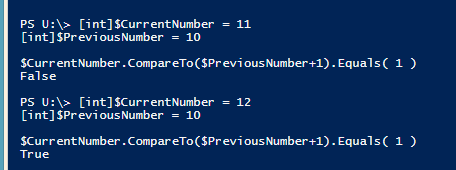
Next, we compare our CurrentNumber with the PreviousNumber by using .CompareTo. If our CurrentNumber (let’s say N05) is compared to our PreviousNumber (which is N04) + 1, then .CompareTo returns a Zero (equal) value.
If our CurrentNumber returns a higher value, our If statement will trigger and will report a missing computer. Here is a screenshot showing you the power of this script!
Open up Active Directory Users and Computers. Navigate to a group of computers and create a fake computer at the end. If your last computer name ends with N05, create a computer named N07. This is to simulate a missing computer (N06).
Paste the script above into PowerShell and enter your Prefix. You should see your missing computer! If you don’t, make sure that you have the Quest AD cmdlets loaded.
So the next time you are restructuring Active Directory or renaming your computers, let this script make your life a little easier!