I was recently asked “How can I start tracking user logins without modifying Active Directory or writing to a database?” Odd question right? Our reader, let’s call him Jose, had a few issues:
- He wasn’t allowed to modify Active Directory.
- He wasn’t allowed to set up any new servers/hardware/etc. This ruled out writing his computer logins to a database.
- He was allowed to edit Group Policy at his location. He did not have many restrictions there.
To me, it seems like his boss has their priorities a little mixed up – but oh well. Before finding out these restrictions, I referred him to these two articles:
I was hoping that the powers that could modify AD in his company would see the benefits of the solutions above. It turns out that they don’t trust this site… (or Microsoft documentation for that matter).
After a few emails back and forth, I found out what was going on and we came up with a manual hack to speeding up the whole “what computer are you on?” routine that every one of us face. We ended up using an old time tool with a modern deployment method.
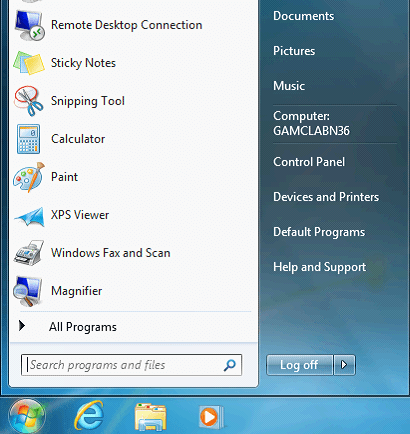
With one registry change plus a deployment with Group Policy Preferences, we can stick the Computer Name under the start menu. Instead of a shortcut to Computer (or My Computer), the user sees “Computer: COMPUTERNAME”. This allows you to quickly check a computer name or to easily tell an employee how to find the computer name.