


It is fast becoming common knowledge that Microsoft will not be making one size fits all tools anymore. Instead, they will provide the basic tools and PowerShell support to automate/extend specific tasks. For proof of this, look no further than Office 365 or any other hosted Microsoft Service. But this change is good! IT Administrators can extend their tools to their environment. While Active Directory Users and Computers (ADUC) is an older tool, you should still modify it to fit your organization. Today, we will cover 3 changes you should make.
Tag Archives: Users
Gathering Active Directory Mobile Phone Attributes
“How can I get import numbers into the Active Directory mobile phone attribute?” That was the most common question to the Reset User Password with Self Service blog post. While it would be easy to do this with a massive CSV, that method still means you (the IT Administrator) will have to maintain it. Today, I have two automatic ways for you – both delegate the work to the end user and allow you to keep working on cooler things!
Continue reading
Group Policy Verbose Mode: The One Group Policy Setting That You Need to Enable
Group Policy is an extremely flexible and complicated tool. One question I am asked quite a bit is, “Can you give me a list of settings I need to enable?” The short answer is No, Microsoft has already enabled the vast majority of things that should be enabled. And while Microsoft’s guidance may change over time (see Offline Files as an example of this), most settings stay the same. There is one setting, however, that is not enabled by default. If you are going to use Group Policy and want to make your troubleshooting life easier, you will want to enable it.
Find Out What Computer a User Logged Into Automatically
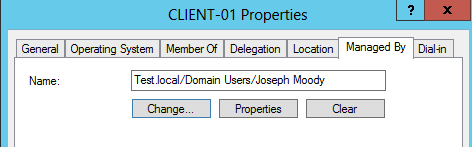
Stop asking “What Computer are You On”! Instead use Active Directory and Group Policy to search for you! In this post, we are going to set Active Directory to automatically record where users login. And when a user calls, Active Directory Users and Computers will let us instantly remote into their computer and will find out what computer a user logged into. In short, you will be able to click on any computer in your domain and see the current logged in user. All within Active Directory Users and Computers!
Block the Control Panel with Group Policy and PowerShell
Being able to block the Control Panel with Group Policy is quite easy, simply enable “Prohibit access to Control Panel”. Blocking certain control panel applets, like Sound, is harder! You would think that enabling “Hide specified Control Panel items” would do the trick – that is until you read the description for that setting.

So it isn’t as simple as entering in Volume to block the Volume and Sound applet. To make sure that we block the correct applet, let’s learn the incorrect and correct way for PowerShell to list our Control Panel canonical names.