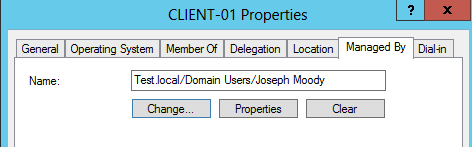
Stop asking “What Computer are You On”! Instead use Active Directory and Group Policy to search for you! In this post, we are going to set Active Directory to automatically record where users login. And when a user calls, Active Directory Users and Computers will let us instantly remote into their computer and will find out what computer a user logged into. In short, you will be able to click on any computer in your domain and see the current logged in user. All within Active Directory Users and Computers!
Tag Archives: Active Directory Users and Computers
Restrict Users to Certain Computers
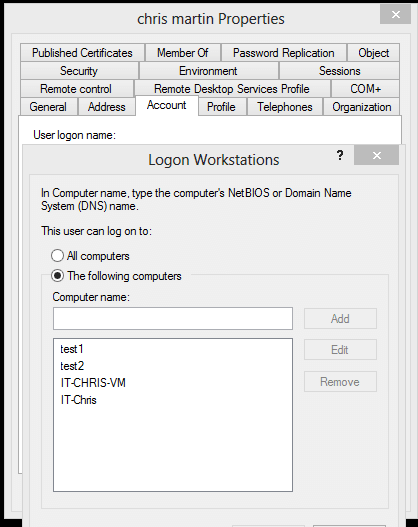
Limiting a user to certain logon workstations is a common administrative task. Doing this is a very repetitive if you have to restrict users to certain computers. Even at that, Microsoft limits you to only 64 workstations when you are entering them in using the GUI. Although you can add additional computers in the AD attribute editor, it is still a huge (comma separated) pain!
To understand the problem, we will do it manually once. Open the user’s properties, go to the Account tab then click “Log on To”. Then add each computer one at a time. It will not take wildcards.
What if you could add a lab of computers just by typing the users name and computer name or prefix? What if you could add an entire site to a guest user automatically? Well you can using PowerShell! – you had to know that line was coming 🙂
Spring Cleaning for a Desktop Adminstrator
Have you got that spring cleaning itch yet? I’m not talking about cleaning the kitchen or pressure washing the house; I am talking about cleaning up your Desktop Administrator life!
To help you with those spring cleaning chores, I’ve written or collected a series of scripts for you:
Active Directory:
- Deleting Stale Computers
- Deleting Stale Users
- Deleting Empty Security Groups
- Enabling Accidental Deletion
Printers:
If you would like to see more scripts or another area to cleanup, let me know! I will see what I can do!
Delete Empty Security Groups
As part of our spring cleaning series, I have a quick tip for you to delete all empty security groups.
Get-qadgroup -SearchRoot "DC=Test,DC=local" -SearchScope Subtree -empty $true | Remove-QADObject -whatif
That’s it! For safety, I added the -whatif parameter. It will simulate the deletion but not actually delete anything. If you are worried that your groups are used for shares, you can find out by using this PowerShell Script. If you would like to test your group deletion without messing anything up, switch the group type from security to distribution. If no one complains after a month, you can delete it then. As always, happy scripting!
Managing Inactive Computers and Users in Active Directory
No matter how hard we try, our Active Directory database still seems to get cluttered! The two most common obsolete objects are computers and users. Today, we are going to clean it those old objects (and provide a bit of safety in case those objects return). What we will end up with is an easy way for you to start manging inactive computers and users in Active Directory!