Do you have computers that should really be running one application? Whether their kiosk machines or clients needing just a web browser, Group Policy Kiosk Mode can your lock your machines down. With just a few administrative templates and loopback, users will get the one application they need and nothing else. Simplicity at its best! To show you what I mean, the picture below is a kiosk machine running only a web browser. The computer automatically starts in the morning, logs in as the kiosk user, and launches the needed application. No Explorer, No Start bar, No way for a user to mess it up!
Category Archives: Management
This category contains any management related posts.
Exhausting the USNs: Inventory + AD = :( ?
We have been writing a ton of information to Active Directory lately! From computer serial numbers, device models, and our current logged in user, we’ve greatly extended the everyday practical benefits of Active Directory. But does this come at a price? Reading the comments of a few different websites, you would certainly think so. Here is a sample:
if you do it [write to a computer] after every logon, you can quickly exhaust the USN for the whole AD domain! And then the domain is dead.
Wow! So, according to this guy – our whole domain will die? That doesn’t seem right. Unfortunately, I do not know enough to accept or deny this statement so I did some research (and contacted Microsoft).
Creating a Hyper-V Lab on Windows 8
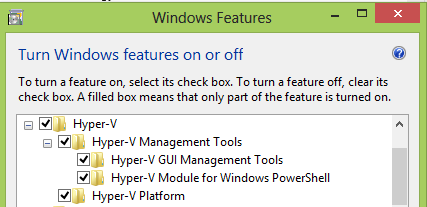
Windows Server 2012 and Windows 8 are so similar that they even share the same version number (6.2)! It should come as no surprise that some desktop features have been integrated into Server (like the Start Screen). While having the Start Screen on Server isn’t the best in terms of diffusion, some great Server features did manage to make it back into Windows 8. The biggest example – Hyper-V! Now, on a client OS, you can natively run an entire virtual environment. In this guide, I’ll show you exactly how to do this so that you can start creating a Hyper-V lab on Windows 8.
Inventory for Hardware: Part 2 – Find Serial Numbers in Active Directory
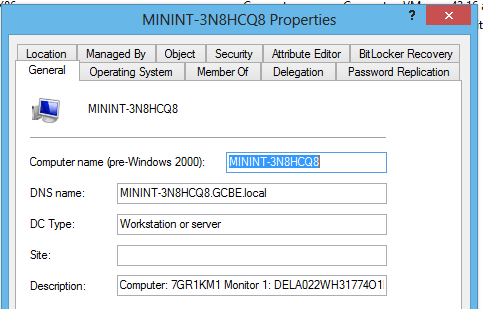
Now that Active Directory can tell us what computer models we have (and how many we own), it is time to extend our inventory! Today, we are going to implement one shutdown that script with Group Policy. This script will query for our computer’s serial number (or service tag) and will also grab the unique ID associated with an attached monitor. It will then store both pieces of information in that computer’s Active Directory account. As a final result, you can look at any computer in your domain and see the information in the Description field. This makes it incredibly easy to find serial numbers in Active Directory!
So if you are tired of manually doing an inventory, let’s automate some stuff!
Active Directory Inventory for Hardware: Computer Make and Model
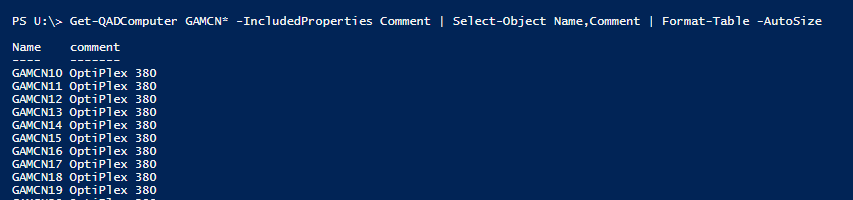
At its core, Active Directory is a database designed to store a multitude of objects. Each of these objects have hundreds of attributes, or properties, attached to them. Some attributes are automatically filled when the object is created. For example, the displayName attribute will automatically have the name of the object in it. Other attributes, like the comment field or description are left blank. These blank comments allow you to easily extend the database scope to your own nefarious purposes!
With a few scripts, you can setup Active Directory Inventory for Hardware. With PowerShell, you can then query or manipulate this data in nearly anyway! Continue reading