


One of the first things you are taught with Group Policy is LSDOU. Knowing that, you might think that all GPOs linked at a site are processed, then the domain, and then any OU/sub-OU. Any settings left would be the resultant set of policy, right? Not quite! If you have a complicated GPO with different items set (applications, preferences, security, etc), you need to know a second list. Enter the order of operations, also known as the CSE Processing Order.
Category Archives: Active Directory
This category contains any Active Directory related posts.
Group Policy Verbose Mode: The One Group Policy Setting That You Need to Enable
Group Policy is an extremely flexible and complicated tool. One question I am asked quite a bit is, “Can you give me a list of settings I need to enable?” The short answer is No, Microsoft has already enabled the vast majority of things that should be enabled. And while Microsoft’s guidance may change over time (see Offline Files as an example of this), most settings stay the same. There is one setting, however, that is not enabled by default. If you are going to use Group Policy and want to make your troubleshooting life easier, you will want to enable it.
Find Out What Computer a User Logged Into Automatically
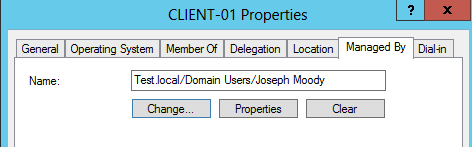
Stop asking “What Computer are You On”! Instead use Active Directory and Group Policy to search for you! In this post, we are going to set Active Directory to automatically record where users login. And when a user calls, Active Directory Users and Computers will let us instantly remote into their computer and will find out what computer a user logged into. In short, you will be able to click on any computer in your domain and see the current logged in user. All within Active Directory Users and Computers!
Block the Control Panel with Group Policy and PowerShell
Being able to block the Control Panel with Group Policy is quite easy, simply enable “Prohibit access to Control Panel”. Blocking certain control panel applets, like Sound, is harder! You would think that enabling “Hide specified Control Panel items” would do the trick – that is until you read the description for that setting.

So it isn’t as simple as entering in Volume to block the Volume and Sound applet. To make sure that we block the correct applet, let’s learn the incorrect and correct way for PowerShell to list our Control Panel canonical names.
Restrict Users to Certain Computers
Limiting a user to certain logon workstations is a common administrative task. Doing this is a very repetitive task if you have to restrict users to certain computers. Even at that, Microsoft limits you to only 64 workstations when you are entering them in using the GUI. Although you can add additional computers in the AD attribute editor, it is still a huge (comma separated) pain!
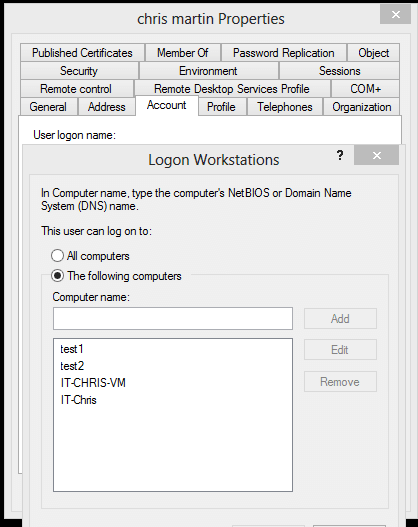
To understand the problem, we will do it manually once. Open the user’s properties, go to the Account tab then click “Log on To”. Then add each computer one at a time. It will not take wildcards.
What if you could add a lab of computers just by typing the user’s name and computer name or prefix? What if you could add an entire site to a guest user automatically? Well you can using PowerShell! – you had to know that line was coming 🙂