You’ve spent hours perfecting your MDT Task Sequence. You’ve implemented extensive guides, read the best books, and tested everything in your virtual environment. When you first start imaging, some of your machines mysteriously stop during the Task Sequence. Each broken machine had the same error message: Dirty Environment Found.
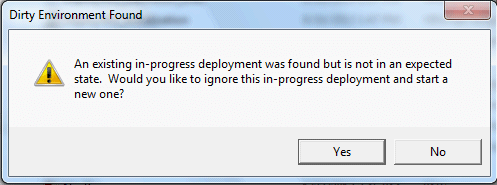
What does this message mean? How can we fix it? And most importantly, how can we stop it from ever coming back?
What Does Dirty Environment Found Error Actually Mean?
MDT is an amazingly flexible imaging solution! One of the biggest features is its ability to self repair. As a machine processes a task sequence, it records its progress. One indication of this progress is the MININT folder in the root of C:\. This is great until something like an unexpected reboot happens. When this occurs, you will receive the Dirty Environment Found error message. Your client will ask you whether you would like to start a new deployment or pick up where the other one left off.
The Dirty Environment Found error can occur in two places: in the pre-installation environment (PE) and in Windows. When you see this message in Windows PE, you can be fairly certain that the machine did successfully finish its previous Task Sequence. Most of the time, you will want to select Yes to start a new deployment. If you see this message in Windows, something interrupted the current Task Sequence. On production machines, you will probably select No to continue the existing deployment.
How do I fix the Dirty Environment Found error?
If you are regularly receiving the existing in-progress deployment error in the Windows environment, you have something that is breaking your Task Sequence. Here are some possible causes:
- An application in your Task Sequence that is causing an unexpected reboot.
- An MSI being deployed with Group Policy that is causing an unexpected reboot.
- A GPO that is stopping the Task Sequence
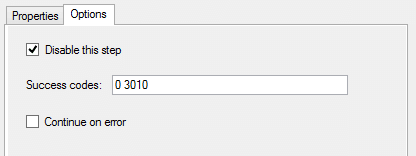
If you suspect an application within your Task Sequence, disable that specific task and restart your Task Sequence. If the Task Sequence breaks again, you will need to add a No Restart parameter to your application. This parameter can be found with the Ultimate EXE Silent Switch Finder, by running /? after the setup, or found on IT Ninja.
If you believe Group Policy Software Installation is causing the unexpected reboot, try to find and isolate the offending policy. You can use the Event Viewer to help you find the application that caused the reboot. Once found, you will either need to provide a No Restart parameter or apply a WMI filter to the policy that is only true once a Task Sequence has finished. The No Restart parameter is more efficient than a WMI filter.
There are times where you must use a WMI filter. Crafting one is easy though! When a Task Sequence successfully completes, the log files are moved to C:\Windows\Temp\. This filter will check for the existence of that folder and not apply GPOs until the Task Sequence finishes:
Select * From CIM_Directory Where Name = ‘C:\\Windows\\Temp\\DeploymentLogs’
Certain Group Policy settings can also break a Task Sequence. The three most common culprits are:
- GPOs that change the local administrator password
- Policies that configure automatic logon (such as for a kiosk machine)
- Consent/User Agreement Prompts
You can use the WMI filter above to fix these Group Policy settings. By modifying your Task Sequence and your Group Policy environment, you can prevent the Dirty Environment Found errors and successfully image more machines! If you have seen this message in other places or if you have other solutions, leave a comment and help your IT brethren out!