Problem: Office politics made it impossible to take away all administrative rights for some staff members. You need a painless way to delegate administrative rights to certain users without jeopardizing the security of many machines.
Solution: Use User Configuration – Local User and Groups Preferences to add and remove users depending on who is logged on. Ready to see it in action? Read on
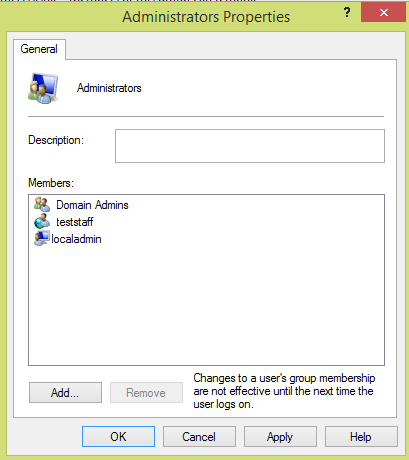
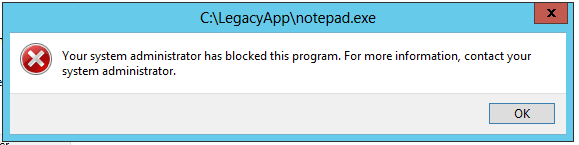
Though this picture isn’t cool, the magic behind it is!
Manage Administrative Permissions with Group Policy Preferences
Group Policy MVP Martin Binder taught me this trick when he posted a comment here. In this article, we will outline that idea and provide some step-by-step guidance for implementation.
Start by creating two security groups in Active Directory named something like:
- Local Admin Computers
- Local Admin Users
Add the users needing administrative rights to the Local Admin Users group. Any computer that they need the permissions on should be added to the Local Admin Computers group. I prefer using two separate groups as I do not like to have multiple object types in the same security group.
Create a new GPO named Restricted Group: Additional Local Admins. Though we will be using Group Policy Preferences, I like keeping the GPO prefix the same as my other restricted groups GPOs. Under Security Filtering, add both groups that you created earlier. We will be using loopback for this GPO – both the user and computer will need permissions to apply the GPO. The GPO should be linked to a OU containing members of the Local Admin Computers security group.